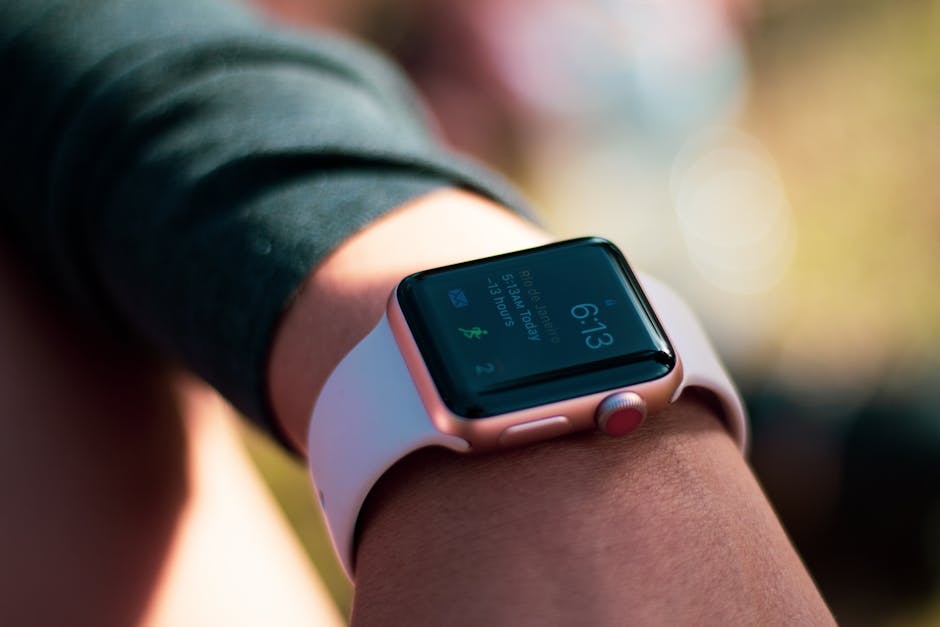
Photo by Ingo Joseph on Pexels
Welcome to the future, where we apparently still need a step-by-step tutorial to change a digital watch face, yet somehow haven’t figured out how to make batteries last longer than a weekend of regret.
Let’s be honest. As someone who owns more Apple hardware than financial advisors would comfortably recommend, I appreciate a good piece of Cupertino engineering. iPhones are great (yes, I have several, don’t judge), and the Apple Watch remains the undisputed heavyweight champion of the wrist. But sometimes, switching up your watch face feels like performing open-heart surgery with a butter knife.
Fear not, dear US readers. Whether you are rocking the latest wrist-computer of 2026 or an older model holding on for dear life, here is your definitive, zero-nonsense guide to changing your Apple Watch face without questioning your life choices.
The Direct Approach: On-Watch Surgery
If you want immediate gratification—a rare commodity in 2026—you can do this directly on the watch. It takes about 45 seconds, which is roughly how long it takes to regret buying Bluetooth earbuds when your left one decides to disconnect mid-podcast (though, let’s be real, I still keep a pair of wired earbuds in my desk drawer like a civilized hermit).
- Wake up your Apple Watch by tapping the screen or raising your wrist (if the gyroscope is feeling cooperative today).
- Press firmly on your current watch face—or just hold your thumb there until the UI realizes you mean business.
- Swipe left or right until you find a face you actually like, or tap the giant New button (the one with the plus sign) if you enjoy infinite scrolling through options you will never use.
- Tap Add or swipe up to select your chosen layout.
The Armchair Architect: Using the iPhone Watch App
If you prefer using a device with a screen larger than a postage stamp, grab your iPhone.
- Open the Watch app. It’s the one with the little icon that looks like, well, an Apple Watch.
- Tap the Face Gallery tab at the bottom. This is essentially a digital boutique where complications are displayed like expensive modern art.
- Scroll through, pick a design, and customize your complications—because heaven forbid you go five minutes without knowing your UV index or stock portfolio plummeting.
- Tap Add, and watch the magic happen on your wrist via the miracle of wireless syncing (though part of me still wishes we could just plug the watch into a charging cable for a hardwired data transfer, because wireless charging is great until it decides to spiritually detach overnight).
Complications and Sharing: Showing Off
Complications are the little widgets that tell you everything except when your next existential crisis is arriving. In 2026, you can cram so many complications onto a single screen that your watch face looks like the control panel of a Boeing 737.
Found a setup that doesn’t look hideous? You can share it with friends. Just tap the share icon in the Watch app on your iPhone, and text it to someone who cares deeply about your daily step count. It takes all of 10 seconds, provided your Wi-Fi is behaving.
What to avoid? Avoid drowning your face in eleven different weather metrics unless you live in a rainforest and enjoy micro-managing humidity. Keep it clean, keep it functional, and stop spending forty minutes trying to match your digital complications to your socks.
Source reference: baltimorechronicle
Disclaimer: This article was generated and formatted with the assistance of Artificial Intelligence.